Where can I find last year's income on last year's tax return?
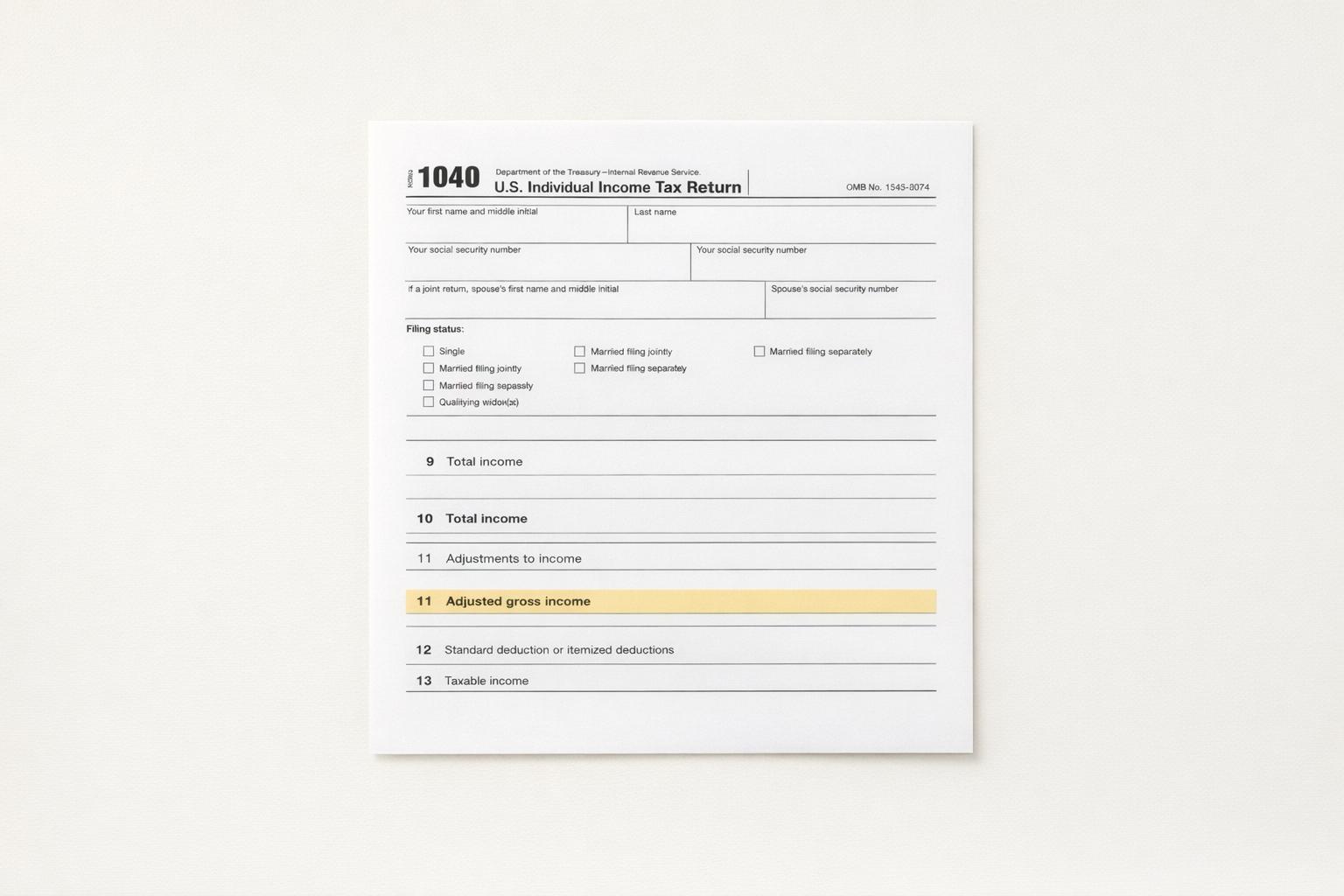
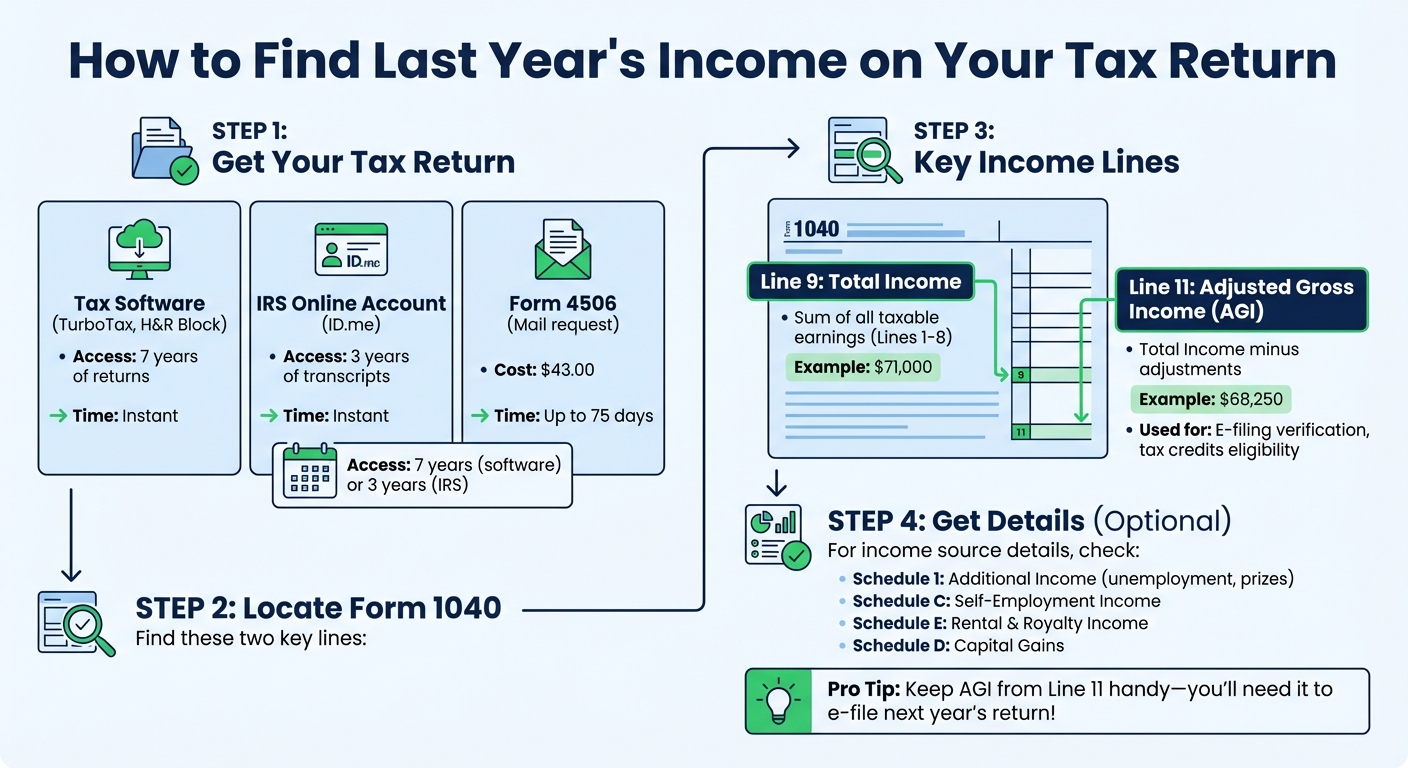
To find your income from last year on your tax return, look at Form 1040. Two key lines provide this information:
- Line 9: Total Income – This is the sum of all taxable earnings before any adjustments.
- Line 11: Adjusted Gross Income (AGI) – This is your Total Income minus specific adjustments, which is often required for tasks like e-filing your current tax return.
If you don’t have a copy of your return, you can access it through:
- Tax Software: Log in to platforms like TurboTax or H&R Block to view or download past returns.
- IRS Online Account: Get free transcripts for the last three years.
- Form 4506: Request a full copy by mail (fee applies).
Schedules like Schedule 1 (Additional Income) and Schedule C (Self-Employment Income) can provide more details about specific income sources. Keeping these documents organized helps with tax filing, financial planning, and avoiding errors.
How to Find Last Year's Income on Your Tax Return: Step-by-Step Guide
How to Get Your IRS Tax Transcript Online
How to Get Your Prior Year Tax Return
Before diving into specific income details, you'll need a copy of last year's tax return. You can either retrieve it from the tax software you used or request it directly from the IRS. This document is key for verifying income details and making informed tax decisions.
Accessing Tax Returns Through Tax Software
If you used tax software to file, that’s the best place to start. For TurboTax Online users, simply log into your account to access tax returns from the past seven years. You can view, download, or print them whenever needed [3]. If you used TurboTax Desktop, your files are saved locally on your computer - look in the "Documents > TurboTax" folder and search for files with the ".tax" extension [3].
Can’t find your return? Double-check whether you used a different email or user ID when filing. Platforms like H&R Block and TaxSlayer provide tools to help locate accounts linked to your information [3]. Once logged in, head to the "Documents" or "Tax Home" section, where you’ll usually find a dropdown menu listing prior tax years [3].
If accessing your return through software isn’t an option, the IRS can help with transcripts or copies.
Requesting Tax Documents from the IRS
For those who didn’t use tax software or can’t access their accounts, the IRS provides free transcripts containing most of the information from your original return. Log into your IRS Online Account to instantly view, download, or print transcripts for the current year and the three prior years [5][7]. To verify your identity, you’ll need to use ID.me, which requires a photo ID and a selfie [6].
Prefer another method? Call 800-908-9946 to request transcripts by phone. These will arrive by mail within 5 to 10 calendar days [4][7]. If you need an exact photocopy of your return, you’ll have to mail Form 4506 and pay a $43.00 fee for each return requested [6]. Keep in mind, full copies can take up to 75 calendar days to process. However, transcripts are usually sufficient for tasks like verifying income for a mortgage application [6].
Finding Total Income on Form 1040
Once you have your tax return in hand, the next step is to identify the income figures on Form 1040. This form highlights two important numbers: Total Income on Line 9 and Adjusted Gross Income (AGI) on Line 11. These numbers play distinct roles in your tax filing process. Understanding what they represent can help you plan your finances, check your eligibility for tax benefits, and calculate deduction limits. Essentially, they connect your overall earnings to the adjustments that influence your final tax obligations.
Line 9: Total Income
Line 9 reflects your Total Income, which is the sum of all taxable earnings before any adjustments are made [1]. This includes income from Lines 1 through 8, such as wages, taxable interest, dividends, IRA distributions, pensions, Social Security benefits, capital gains, and other sources like self-employment or rental income [9].
For instance, the IRS shared an example in October 2025 involving an individual with the following income breakdown: $50,000 in wages, $12,000 from rental income, $8,500 from part-time work, and $500 in bond interest. Adding these together, their Total Income on Line 9 came to $71,000 [1].
Once you’ve identified your Total Income on Line 9, the next step is calculating your AGI on Line 11.
Line 11: Adjusted Gross Income (AGI)
Line 11 shows your Adjusted Gross Income (AGI) [10]. This figure is crucial because it determines your eligibility for many tax credits and deductions. AGI is calculated by taking your Total Income from Line 9 and subtracting the adjustments listed on Line 10, such as educator expenses and student loan interest [8][10].
"AGI is the gateway to most tax benefits because the IRS uses it as the primary way to determine if you qualify for credits and deductions." - LegalClarity Team [10]
In the earlier IRS example, the individual had $2,750 in adjustments - $250 for educator expenses and $2,500 for student loan interest. Subtracting these adjustments from their $71,000 Total Income resulted in an AGI of $68,250 on Line 11 [1]. This AGI is key for determining eligibility for tax credits like the Child Tax Credit and Earned Income Tax Credit. It also sets limits for itemized deductions, such as medical expenses exceeding 7.5% of AGI or charitable donations. Additionally, AGI impacts Roth IRA contribution eligibility, which begins to phase out for single filers at a modified AGI of $150,000 for the 2025 tax year [10]. When filing electronically, you’ll need the AGI from Line 11 of your previous year’s return to verify your identity [11].
sbb-itb-e723420
Using Form 1040 Schedules to Break Down Income
Line 9 on Form 1040 gives you the total picture of your income, but it doesn’t show where each dollar comes from. To get the details, you’ll need to dig into the attached schedules. These forms break down income from various sources - whether it’s freelance work, rental properties, investments, or other activities - helping you see exactly how your earnings add up.
Schedule 1: Additional Income
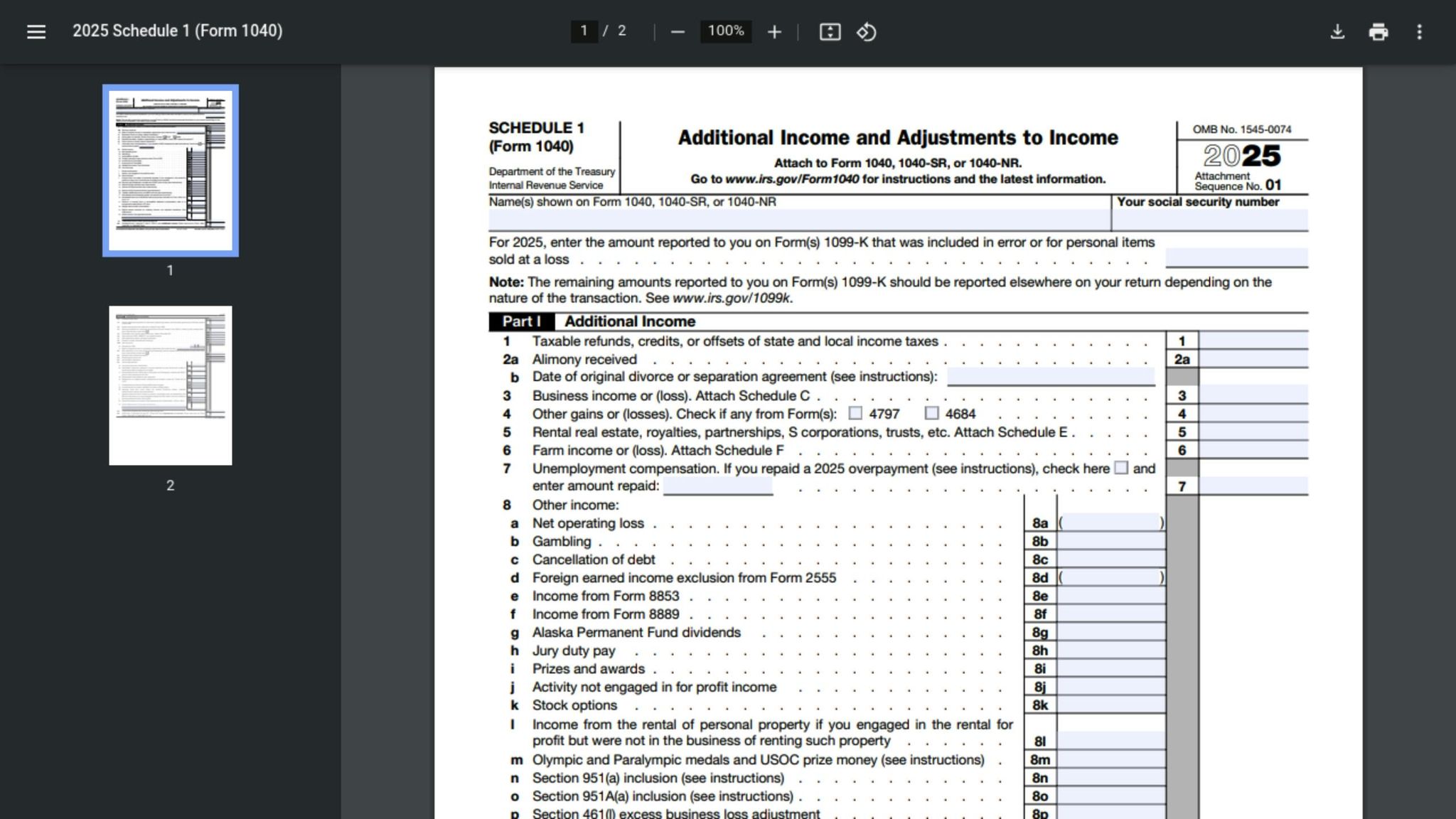
Schedule 1, officially titled "Additional Income and Adjustments to Income," captures income types that aren’t directly listed on Form 1040. This includes things like unemployment benefits, prize money, and gambling winnings. If your total income on Line 9 of Form 1040 seems higher than what’s on your W-2s, Schedule 1 often explains the difference.
It also acts as a hub for income flowing in from other schedules. For instance:
- Self-employment income: The net profit from Schedule C moves into Schedule 1 before appearing on Line 9.
- Rental property income: Reported on Schedule E, it’s summarized here.
- Farming income: Numbers from Schedule F are also included.
In short, Schedule 1 consolidates multiple income streams into one place. Here’s a quick breakdown of how different types of income connect to their respective schedules:
| Income Type | Schedule to Reference | Description |
|---|---|---|
| Business Profit/Loss | Schedule C | Earnings from freelance work or sole proprietorships |
| Rental & Royalty Income | Schedule E | Money from real estate rentals, royalties, or pass-through entities |
| Unemployment & Prizes | Schedule 1 | Includes unemployment benefits, gambling winnings, and prize money |
| Farm Income | Schedule F | Earnings or losses from farming activities |
| Capital Gains | Schedule D | Profits from selling assets like stocks or real estate |
| Interest & Dividends | Schedule B | Income from bank interest or stock dividends |
Schedule C: Self-Employment Income
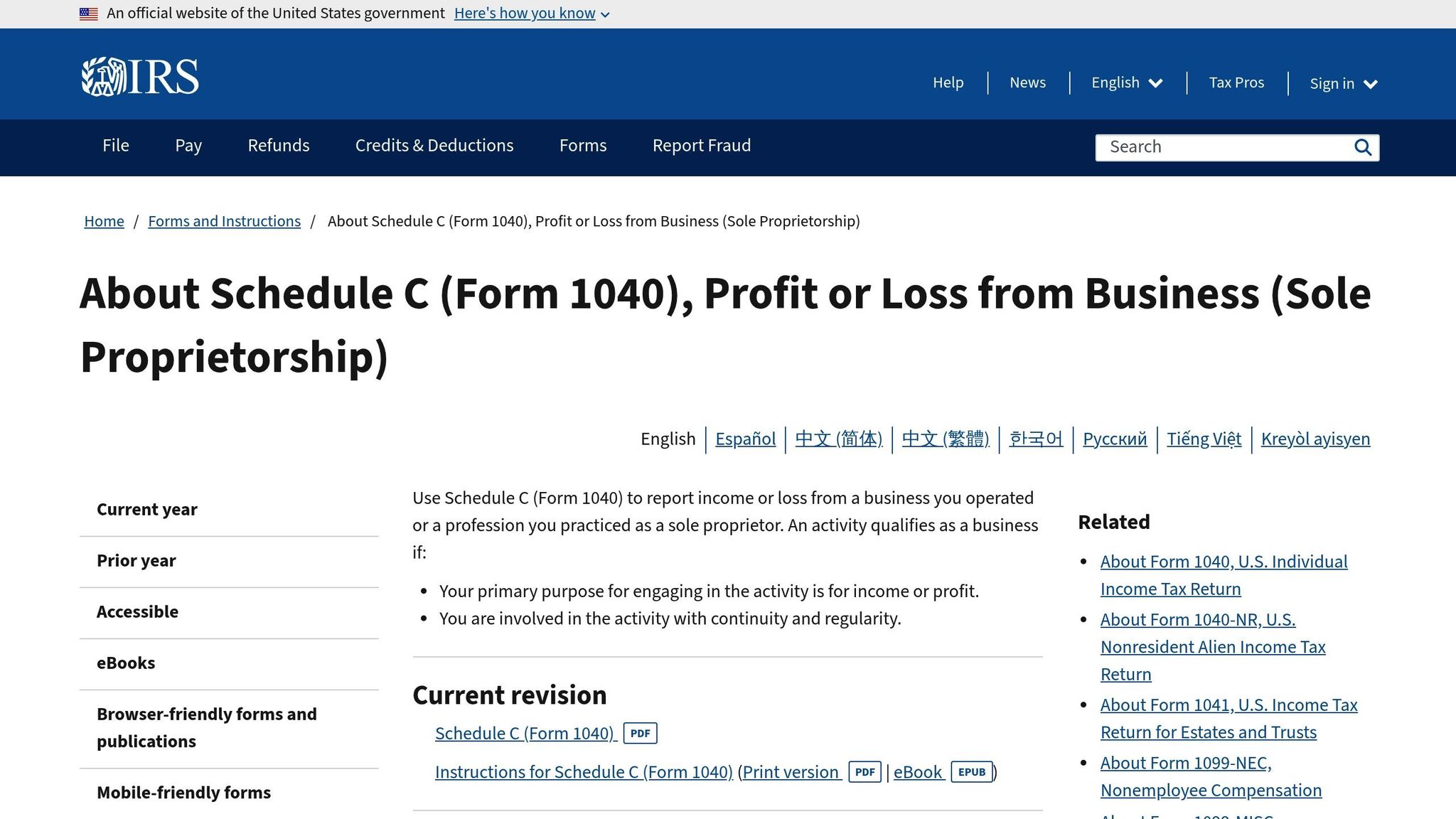
If you’re a freelancer, independent contractor, or small business owner, Schedule C is where you report your self-employment income. Here’s how it works:
- Part I, Line 1: Lists your "Gross receipts or sales," which is the total revenue before any deductions.
- Line 7: Shows your "Gross income" after subtracting the cost of goods sold.
- Line 31: This is the key figure - your "Net profit or loss" after deducting all business expenses. This number is then transferred to Schedule 1 and, ultimately, to Form 1040.
"An activity qualifies as a business if your primary purpose for engaging in the activity is for income or profit and you are involved in the activity with continuity and regularity." – Internal Revenue Service
If you operate multiple businesses, make sure each Schedule C’s Line 31 matches the corresponding entry on Schedule 1. Also, review Part II of Schedule C for a detailed look at your operating expenses, as these directly impact your net income. Tax software can help you quickly locate and verify these figures, ensuring everything adds up correctly.
Using Tax Software to Find Income Faster
Filing your taxes digitally has its perks. You can skip digging through physical paperwork or waiting weeks for the IRS to send you information. Tax software keeps your returns stored and makes it simple to pull up income details in just a few clicks.
Finding Income Summaries in Tax Software
Digital tax platforms make life easier by organizing your past returns for quick access. Many platforms, like TurboTax, H&R Block, and TaxAct, store your returns for up to seven years if you stick with the same account [2][14]. Their user-friendly menus let you locate prior-year returns and income summaries without hassle.
For example, TurboTax users can log in, head to the "Tax Home" screen, and click on "Your tax returns & documents" to access summaries. Even faster, the "View Tax Summary" option under "Tools" provides a quick snapshot of your income details [12][14][15].
"If you used TurboTax Online, you can log in and print copies of your tax return for free." – TurboTax [2]
Other platforms follow a similar approach. H&R Block users can log into the MyBlock portal, click on the "Taxes" tab, and select "Prior Years" to view return summaries from the past three years [16]. TaxAct offers a "Previewing the 1040 Form" feature, making it easy to check income lines directly through its online help center [13]. These tools ensure you have fast, accurate access to the numbers you need for planning deductions or reviewing your finances.
Using Deductible.me for Tracking Deductions

While tax software helps you find income summaries, tools like Deductible.me go a step further by tracking charitable donations. This app estimates the fair market value of donated items using automated valuation, then creates IRS-compliant reports ready for Form 8283. If you’re basing charitable goals on last year’s income, the app’s analytics can help you set targets and monitor your progress.
Deductible.me offers two plans: a Free plan, which tracks up to $500 in donation value - ideal for occasional donors - and a Premium plan for $2/month, which includes unlimited donation tracking and priority support. Whether you’re a casual giver or a frequent donor, these features simplify the process and keep your records organized.
Conclusion
To sum up, accessing your prior income data doesn't have to be complicated. Start by reviewing the specific lines on Form 1040 for a snapshot of last year’s income. For more detailed breakdowns, refer to schedules like Schedule 1 for unemployment compensation or Schedule C for self-employment earnings.
For convenience, digital tax services and the IRS Online Account provide easy access to archived returns and free transcripts. Tools like Deductible.me can also streamline tracking charitable contributions, offering automated, IRS-compliant reports that align with your income records.
Keeping your tax documents organized throughout the year pays off. Accurate records of Form 1040 and related schedules can simplify tasks like financial aid applications, loan approvals, or comparing year-over-year earnings. Plus, these records help you plan donations and set financial goals more effectively. Remember, the IRS updated instructions for 2025 forms on January 30, 2026, so always ensure you're reviewing the latest guidance when handling your returns [17].
With the right tools and a proactive approach, accessing last year’s income becomes a straightforward process that supports smarter financial planning.
FAQs
Which income number do I use for e-filing: Line 9 or Line 11?
When e-filing, refer to Line 11 on your Form 1040. This line shows your adjusted gross income (AGI) from the previous year, which the IRS uses for verification. Be sure to carefully check this amount to prevent mistakes when filing your return.
What if my Line 9 total is higher than my W-2 income?
If the amount on Line 9 exceeds your W-2 income, it might indicate additional income sources such as self-employment earnings, rental income, or other figures listed on Schedule 1. Carefully review your tax forms to ensure all income is reported correctly. If something seems off, double-check for errors or omissions to prevent any inconsistencies.
Are IRS transcripts enough to prove last year’s income for a loan or application?
IRS transcripts usually work well to verify last year’s income for loans or applications. These documents provide details from your originally filed tax return and are often used for income verification. However, it’s a good idea to double-check with the requesting party to make sure the transcripts meet their specific needs.